This guide is written for schools that manage their iPad devices using Cisco Meraki as MDM system.
1. Add the Digiexam application in Meraki
Go to Systems Manager -> MDM -> Apps (see figure 1)
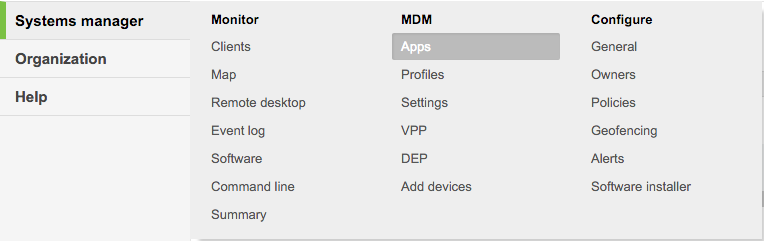
Figure 1
Press Add New -> iOS App (see figure 2)

Figure 2
Write "digiexam" in the search box and click on "Search" (see figure 3)

Figure 3
Click on the "Add" button to the right (see figure 4)
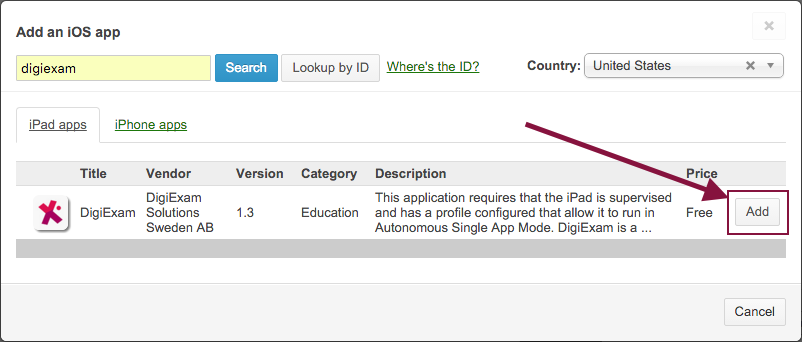
Figure 4
Choose options (optional) and save changes (see figure 5)

Figure 5
2. Allow "Single app mode" for Digiexam
Single
Go to Systems Manager -> MDM -> Settings (see figure 6)
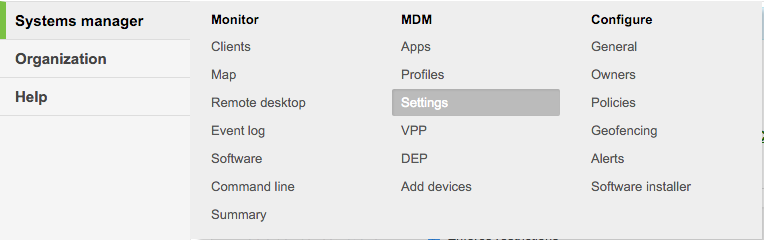
Figure 6
Scroll down until you see the heading "Allowed Single App Mode". Type in "digiexam" in the search box and click on "DigiExam" (see figure 7)

Figure 7
When Digiexam has been added, it will be shown (in grey) in the "Allowed Single App Mode" box (see figure 8)

Figure 8
Save changes (see figure 9)
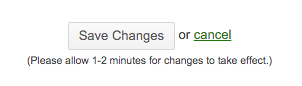
Figure 9
Comments